Identify which failure you have
Start with reversible checks and record the symptom before changing settings. A game that will not launch, a world that will not load and a server that cannot be found are different problems.
Write down the error message, platform, when it fails and what changed immediately before it began. That short record is more useful than applying every fix in a comment thread at once.
| Symptom | Start here |
|---|---|
| PC game fails to launch or crashes | Restart, update and verify the installation |
| Failure after a community download | Test without the most recent modification |
| Only one world fails | Preserve its files and compare with a separate test world |
| Friends cannot join a server | Check the host and network separately |
| Console problem | Check the console/game updates and official support |
PC: use a short first-pass checklist
- Close the game and restart Steam or the PC. Retest once and note whether the symptom changed.
- Check for game, operating-system and graphics-driver updates. Use the normal vendor channels. Meet the game's requirements before treating a settings tweak as a substitute for supported hardware.
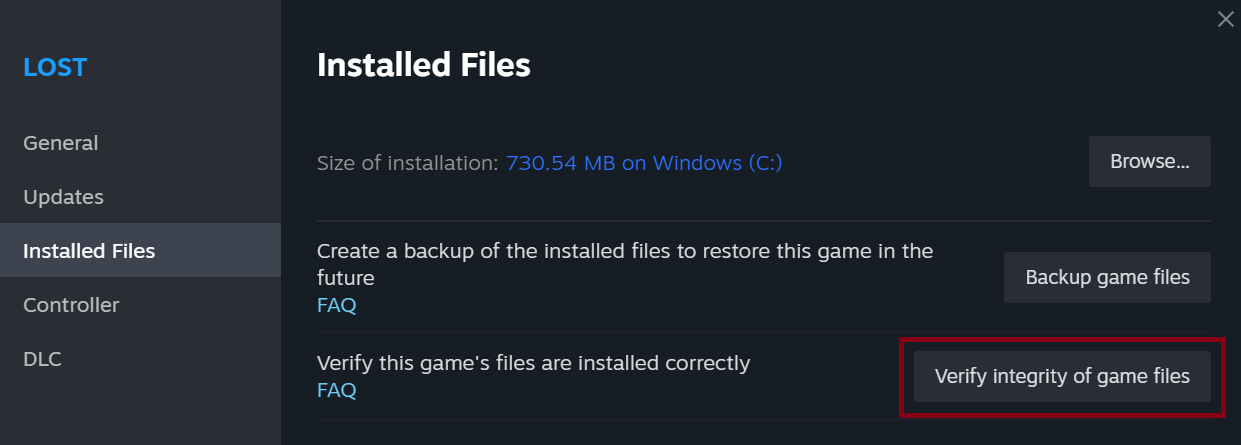
- Verify game files in Steam. Open the game's Properties, then Installed Files and the integrity-verification option. Let it complete before launching again.
- Undo the most recent optional change. If the issue began after a mod, overlay or custom setting, test without that addition. Change one item at a time so the result means something.
Success check: the game can reach the menu, enter a world and remain stable during the activity that previously failed. Reaching the title screen alone does not establish that a world-load crash is fixed.
Protect saves while testing
Keep a separate backup before any save migration, folder rename or reinstall. Do not delete your only character/world copy to test a crash fix.
If a separate test world works while one world fails, record that distinction for support. If an Early Access save was converted for 1.0, retain your pre-conversion backup as well. Do not overwrite it during repeated experiments.
Multiplayer problems
Check whether the host is running and whether the client and server versions match. If one player can join but another cannot, compare the connection path before moving world files.
Use the dedicated-server checklist for the generated configuration, logs and official network instructions. Reinstalling the client is not a universal solution for a host that is offline or undiscoverable.
When to ask support
If the same failure remains after the short checklist, collect the exact error, platform, game version, reproduction steps and whether the unmodified game shows it. Use the official help centre's request route.
Do not use a random community executable, blanket launch flags or a claim that one tweak fixes most crashes as your default next step. Match further changes to a current explanation of your actual error.
Sources and version
Reviewed November 1, 2026. This is a general diagnosis order, not a claim that a particular crash fix works on every system. It does not recommend deleting saves or disabling system protections.