
Choose how the world will be hosted
A dedicated server is a separate running world host. This guide follows Keen's Steam Tools installation path for Windows. Choose it when you want a shared host rather than relying on a player keeping an ordinary hosted session open.
Before migrating an existing world, make a backup and establish where the server stores its saves. Leave the original world intact until you have joined the new host and confirmed that it is the intended world.
Install through Steam Tools
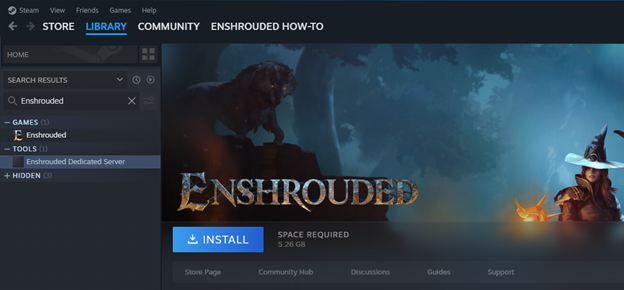
- In the Steam Library, enable the Tools filter and find Enshrouded Dedicated Server.
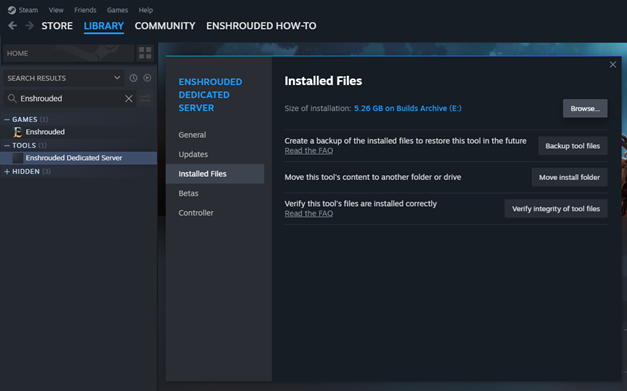
- Install that tool. Open its Properties → Installed Files → Browse to locate the files.
- Follow Keen's instructions to run the server executable from that location. Its installation article recommends the executable rather than Steam's Launch button.
- The first start generates enshrouded_server.json. Confirm that the file and server logs appear before changing configuration.
This is the dedicated-server tool, not a command to install the ordinary game App ID as a server. The official installation guide includes the Steam screenshots.
Configure the generated file
Stop the server before editing and retain a copy of the generated configuration. Update the existing fields you need rather than replacing the whole file with an old snippet.
| Field | Purpose |
|---|---|
| name | The name players see in the server list |
| saveDirectory | The world's save location |
| logDirectory | Where to inspect server logs |
| queryPort | The configured query port; the official example uses 15637 |
| slotCount | Player-slot configuration |
Keep JSON punctuation valid. If the server fails after an edit, compare that change with your saved configuration and read the log. Follow the current official role and access settings instead of assuming a password example from an older tutorial still covers the current format.
Connect and test
- Start the configured server and confirm that it remains running.
- Open the game's multiplayer join flow and locate the intended host.
- If it is not discoverable, compare the configured port with the host's firewall and router setup using Keen's network guide.
- Join, check the world, then test that progress persists across a normal server restart.
A local connection does not prove that a friend outside your network can join. Likewise, failure to appear in a list does not by itself prove a damaged save. Diagnose the network separately from the world files.
Maintain the world
Keep the game and server on compatible versions. Make world backups while the server is stopped, store them separately, and keep a known-good copy before updates. Do not paste private addresses, passwords or full logs containing private information into public help posts.
Success check: the intended group can join the right world and its progress survives a restart. Use troubleshooting for game-launch issues; start with server logs and networking for host-discovery issues.
Sources and version
Official documentation checked November 1, 2026. This is a setup checklist, not a remote installation or a test of your router. Follow the generated configuration and current official articles when they differ from older videos.